Introduction
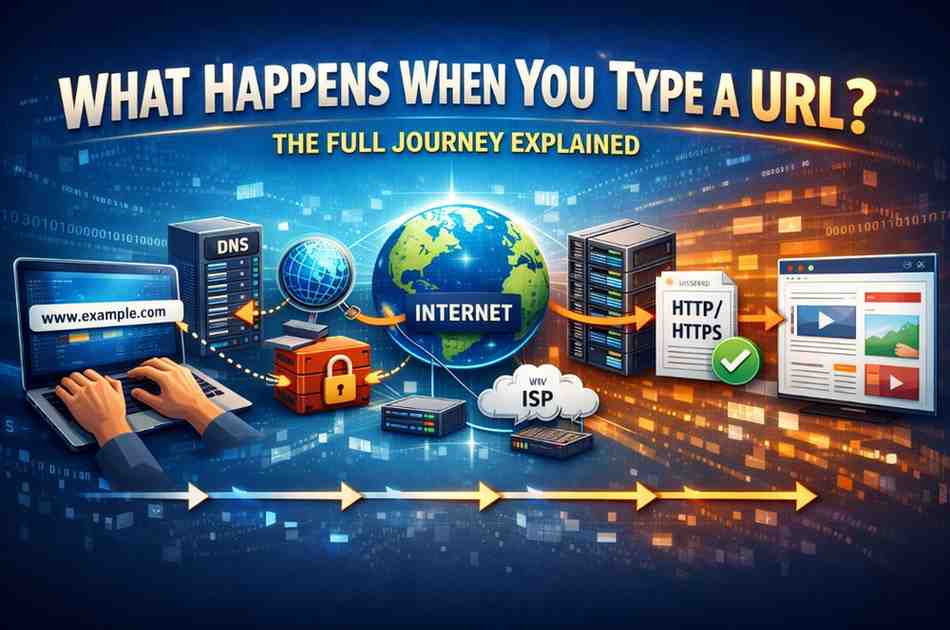
Ever wondered what happens when you type a URL into your browser and hit enter? In just milliseconds, an incredible chain of events unfolds across the globe.
Most people think typing a web address is simple—and it is for you. But behind the scenes, your request travels through multiple servers, routers, and networks before returning the webpage you see.
This article reveals the complete technical journey in plain English. You’ll understand every step from DNS lookup to final display, without needing any coding knowledge.
What Is a URL and Why Does It Matter?
A URL (Uniform Resource Locator) is the complete web address you type into your browser. It tells your computer exactly where to find the content you want.
URL Structure Breakdown:
- Protocol: https:// (the communication method)
- Domain: www.example.com (the website name)
- Path: /blog/article (the specific page)
- Parameters: ?id=123 (optional extra data)
When you type a URL, you’re initiating a complex request that involves dozens of technologies working together seamlessly.
Example: https://www.amazon.com/products/books?category=fiction
Each part tells the browser something different about what you want and how to get it.
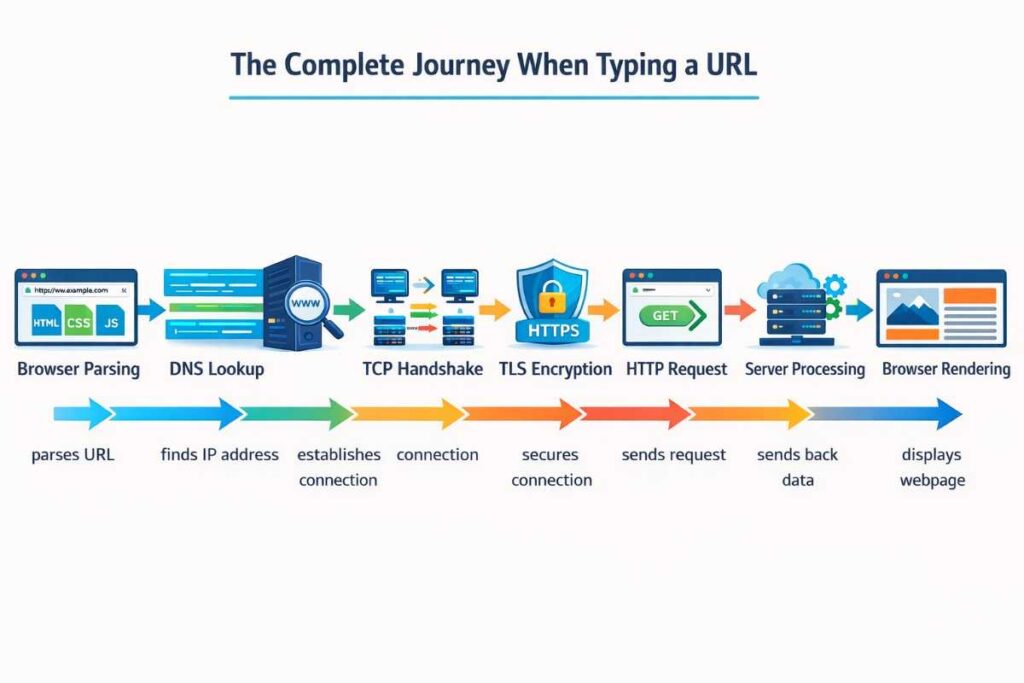
Step 1: You Press Enter and the Browser Parses the URL
The moment you hit enter, your browser springs into action. It first validates and parses the URL you typed.
What the Browser Checks:
- Is the protocol valid? (HTTP, HTTPS, FTP)
- Is the domain name properly formatted?
- Are there any special characters that need encoding?
- Does it match any bookmarked or cached URLs?
If you typed just “amazon.com” without “https://”, the browser automatically adds it. Modern browsers also check for typos and suggest corrections.
Behind the Scenes: Your browser maintains a cache of recently visited websites. It checks if this URL is already stored locally. If the cached version is recent enough, it might skip several steps and load directly from memory.
This optimization can make revisiting websites nearly instantaneous.
Step 2: DNS Lookup Translates the Domain Name
Here’s where what happens when you type a URL gets technical. Computers don’t understand domain names—they need IP addresses.
DNS (Domain Name System) acts as the internet’s phone book, converting “www.google.com” into something like “142.250.190.78”.
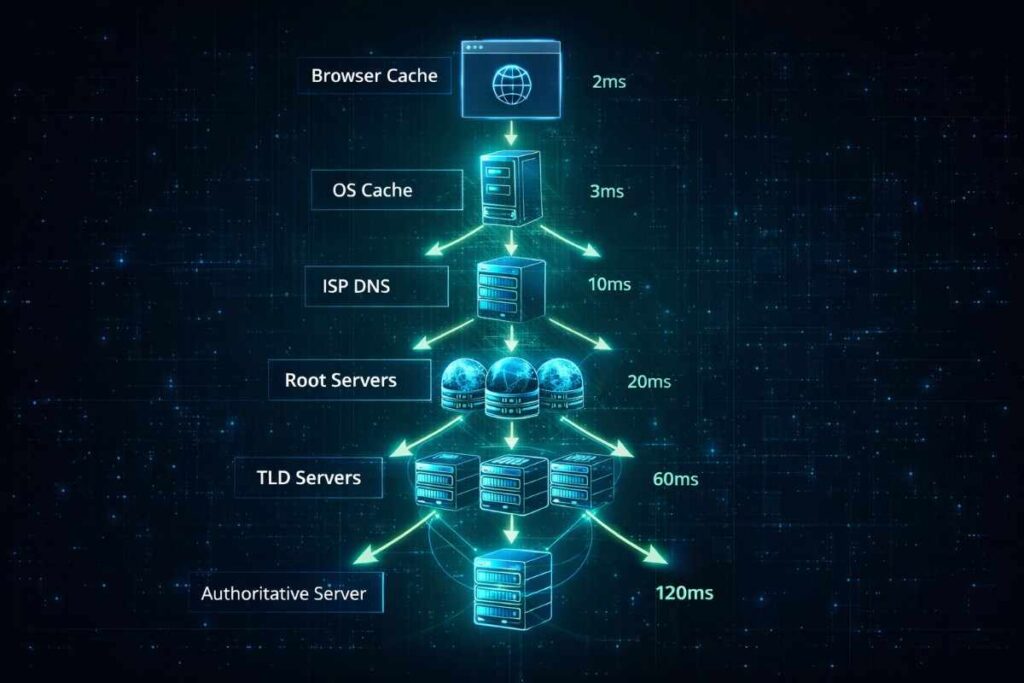
The DNS Resolution Process:
- Browser Cache Check: Your browser checks if it recently looked up this domain
- Operating System Cache: If not found, your OS checks its DNS cache
- Router Cache: Your home router might have the answer cached
- ISP DNS Resolver: Your internet provider’s DNS server is queried
- Root Name Servers: If still not found, the request goes to root servers
- TLD Servers: Top-Level Domain servers (.com, .org, .net) are contacted
- Authoritative Name Server: The final server provides the exact IP address
Timing Matters: This entire process typically takes 20-120 milliseconds. Cached responses are instant, while fresh lookups can take longer.
DNS Records Retrieved:
- A Record: IPv4 address
- AAAA Record: IPv6 address
- CNAME: Canonical name (alias)
- MX Record: Mail server information
Step 3: TCP Connection Establishment (Three-Way Handshake)
Once your browser has the IP address, it needs to establish a connection with the server. This uses TCP (Transmission Control Protocol).
The Three-Way Handshake:
- SYN: Your computer sends a synchronization packet saying “I want to connect”
- SYN-ACK: The server responds with acknowledgment, agreeing to connect
- ACK: Your computer confirms, establishing the connection
Think of it like a phone call: you dial, they answer, you both confirm you can hear each other.
Why This Matters: TCP ensures reliable communication. Unlike UDP (used for streaming), TCP guarantees every data packet arrives in order.
Connection Details:
- Port 80 for HTTP
- Port 443 for HTTPS
- Connection timeout usually 30-60 seconds
- Multiple connections for modern websites
Step 4: TLS/SSL Handshake for Secure Connections (HTTPS)
If the URL uses HTTPS (the “S” stands for Secure), another handshake occurs for encryption.
The TLS Handshake Process:
- Client Hello: Your browser announces supported encryption methods
- Server Hello: Server chooses encryption and sends its SSL certificate
- Certificate Verification: Your browser validates the certificate against trusted authorities
- Key Exchange: Both sides agree on encryption keys
- Finished: Encrypted connection established
Security Features:
- Prevents eavesdropping on your data
- Confirms you’re connected to the real website, not an imposter
- Required for e-commerce, banking, and sensitive data
Visual Indicator: The padlock icon in your browser shows this secure connection is active.
Certificate Authority Trust: Your browser trusts certificates signed by companies like DigiCert, Let’s Encrypt, or Comodo. Invalid certificates trigger security warnings.
Step 5: Browser Sends HTTP Request to the Server
With the secure connection established, your browser sends an HTTP request asking for the webpage.
HTTP Request Components:
Request Line:
GET /products/books HTTP/1.1Headers:
- Host: www.example.com
- User-Agent: Your browser and operating system
- Accept: Types of content your browser can handle
- Accept-Language: Your preferred languages
- Cookie: Previously stored session data
- Referer: The page you came from
Request Methods:
- GET: Retrieve a webpage or resource
- POST: Submit form data
- PUT: Upload or update content
- DELETE: Remove content
- HEAD: Get headers only, no body
Additional Data: Cookies, authentication tokens, and session IDs travel with the request to personalize your experience.
Step 6: Server Processes the Request
When your request reaches the web server, sophisticated processing begins.
Server-Side Actions:
- Web Server Receipt: Apache, Nginx, or IIS receives the request
- Routing: Determines which application should handle this URL
- Application Logic: Backend code (PHP, Python, Node.js) executes
- Database Queries: Retrieves necessary data from databases
- Template Rendering: Generates HTML with dynamic content
- Response Preparation: Packages everything for delivery
Modern Architecture: Large websites use load balancers to distribute requests across multiple servers. This prevents any single server from being overwhelmed.
Caching Layers:
- CDN Cache: Content Delivery Networks store copies globally
- Server Cache: Redis or Memcached speed up common queries
- Database Cache: Frequently accessed data stays in memory
Processing Time: Simple pages: 50-200 milliseconds Complex pages: 200-1000 milliseconds Heavy computation: 1-5 seconds
Step 7: Server Sends HTTP Response Back
The server packages its response and sends it back through the same network path.
HTTP Response Structure:
Status Line:
HTTP/1.1 200 OKCommon Status Codes:
- 200 OK: Request successful
- 301 Moved Permanently: Redirect to new location
- 404 Not Found: Page doesn’t exist
- 500 Internal Server Error: Server-side problem
- 503 Service Unavailable: Server overloaded
Response Headers:
- Content-Type: text/html, image/jpeg, application/json
- Content-Length: Size of the response in bytes
- Cache-Control: How long to cache this content
- Set-Cookie: Store data in your browser
- Last-Modified: When content was last updated
Response Body: The actual HTML, CSS, JavaScript, images, or data you requested.
Step 8: Data Travels as Packets Across the Network
Understanding what happens when you type a URL requires knowing how data actually travels.
The response doesn’t move as one big file. It breaks into small packets (typically 1,500 bytes each).
Packet Journey:
- Each packet contains source and destination IP addresses
- Routers examine each packet and forward it
- Packets may take different routes to reach you
- Some packets travel through fiber optic undersea cables
- Others route through satellite connections or terrestrial lines
Internet Backbone: Major internet exchange points (IXPs) in cities like London, Frankfurt, and New York handle massive traffic volumes.
Packet Loss: Occasionally packets get lost or corrupted. TCP detects this and requests retransmission automatically.
Latency Factors:
- Distance: Data can’t travel faster than light
- Routing: More hops = more delay
- Congestion: Network traffic slowdowns
- Processing: Each router adds microseconds
Step 9: Your Browser Receives and Reassembles Data
Packets arrive at your device in random order. Your browser must reassemble them correctly.
Reassembly Process:
- Packet Reception: Your network card receives packets
- Sequence Verification: TCP checks packet numbers
- Error Checking: Validates data integrity
- Ordering: Arranges packets in correct sequence
- Decompression: If gzipped, decompresses the data
Missing Packet Handling: If packet #47 is missing, your browser requests only that packet again, not the entire response.
Buffering: For streaming media, your browser buffers several seconds of data to ensure smooth playback despite network fluctuations.
Step 10: Browser Parses HTML and Builds the DOM
Now the exciting part—your browser turns code into a visual webpage.
DOM Construction: The browser reads HTML line by line, creating a Document Object Model (DOM) tree.
HTML Parsing Steps:
- Tokenization: Breaks HTML into tags, attributes, text
- Tree Building: Creates hierarchical structure
- DOM Creation: Builds the complete document model
Example DOM Tree:
html
├── head
│   ├── title
│   └── meta
└── body
    ├── header
    ├── main
    └── footer
Parser Blocking: When the browser encounters a <script> tag, it typically pauses HTML parsing until the script downloads and executes.
Modern Optimization: Attributes like async and defer allow scripts to load without blocking page rendering.
Step 11: CSS Processing and Render Tree Creation
Simultaneously with HTML parsing, the browser processes CSS (Cascading Style Sheets).
CSSOM Construction: Like the DOM, CSS creates its own tree structure called the CSS Object Model (CSSOM).
Style Calculation: The browser determines which styles apply to each element by:
- Matching CSS selectors to DOM elements
- Resolving inheritance and cascade rules
- Computing final values for all properties
Render Tree: The browser combines DOM and CSSOM into a render tree containing only visible elements with their computed styles.
Hidden Elements: Elements with display: none or visibility: hidden exist in the DOM but not the render tree.
Critical Rendering Path: Modern web development focuses on minimizing the time to first render by optimizing CSS delivery.
Step 12: JavaScript Execution and Interactivity
JavaScript brings your webpage to life with dynamic behavior.
JavaScript Processing:
- Download: Browser fetches .js files
- Parsing: Converts code to executable format
- Compilation: JIT (Just-In-Time) compilation optimizes code
- Execution: Runs scripts and modifies the DOM
Common JavaScript Tasks:
- Form validation
- Animations and effects
- AJAX requests for additional data
- Event listeners for user interactions
- Third-party integrations (analytics, ads)
DOM Manipulation: JavaScript can add, remove, or modify HTML elements after initial page load.
Performance Impact: Heavy JavaScript can slow down page loading. Modern frameworks like React optimize this through virtual DOM and code splitting.
Step 13: Layout and Painting
With all resources loaded and processed, the browser performs layout and painting.
Layout (Reflow): The browser calculates the exact position and size of every element on the page.
Box Model Calculation:
- Content width and height
- Padding
- Borders
- Margins
- Positioning (absolute, relative, fixed)
Painting: The browser draws pixels to the screen in layers:
- Background colors
- Background images
- Borders
- Text content
- Positioned elements
- Effects (shadows, opacity)
Compositing: Multiple layers are combined into the final image you see.
GPU Acceleration: Modern browsers use your graphics card to handle complex visual effects and animations smoothly.
Step 14: Page Is Fully Loaded and Interactive
Finally, the webpage is complete and ready for interaction.
Load Events:
- DOMContentLoaded: HTML parsed, DOM ready (JavaScript can run)
- Load: All resources (images, stylesheets) finished loading
- Interactive: Page fully responsive to user input
Performance Metrics:
- First Contentful Paint (FCP): When first content appears
- Largest Contentful Paint (LCP): When main content loads
- Time to Interactive (TTI): When page becomes fully usable
- Total Blocking Time (TBT): Delays caused by JavaScript
Ongoing Activity: Even after the page loads:
- Background scripts continue running
- Analytics track your behavior
- Ads load asynchronously
- WebSockets maintain real-time connections
The Role of CDNs in Speeding Up URLs
Content Delivery Networks dramatically improve what happens when you type a URL by reducing distance.
How CDNs Work:
Instead of requesting content from a single origin server in one location, CDNs distribute copies across hundreds of servers worldwide.
Benefits:
- Reduced Latency: Content served from nearby locations
- Load Distribution: Traffic spread across multiple servers
- DDoS Protection: Absorbs malicious traffic
- Bandwidth Savings: Origin server handles less traffic
Popular CDNs:
- Cloudflare
- AWS CloudFront
- Akamai
- Fastly
- Google Cloud CDN
Edge Locations: CDN servers positioned strategically in major cities ensure someone in Tokyo gets content from Tokyo servers, not California.
What Happens With Different URL Types
Not all URLs trigger the same process.
HTTPS vs HTTP URLs
HTTP: Unencrypted, faster but insecure HTTPS: Encrypted, slight overhead but essential for security
Static vs Dynamic URLs
Static: www.example.com/about.html (fixed file) Dynamic: www.example.com/search?q=shoes (generated on-demand)
Local Network URLs
192.168.1.1 or localhost:3000 skip DNS and internet routing entirely, staying within your local network.
FTP URLs
ftp://files.example.com uses File Transfer Protocol instead of HTTP, optimized for file downloads.
Data URLs
data:text/html,<h1>Hello</h1> embeds content directly in the URL itself, no server needed.
Common Issues and What Goes Wrong
Understanding the process helps diagnose problems when things break.
DNS Failures: “DNS_PROBE_FINISHED_NXDOMAIN” means the domain name couldn’t be resolved. Usually indicates typos or expired domains.
Connection Timeouts: Server didn’t respond within the timeout period. Could be server overload, network issues, or firewall blocks.
Certificate Errors: “Your connection is not private” warnings indicate SSL/TLS certificate problems—either expired, self-signed, or mismatched.
404 Not Found: The URL is correct, but that specific page doesn’t exist on the server.
500 Server Errors: Something crashed on the server side—database failures, coding errors, or configuration problems.
Slow Loading: Can result from large images, too many HTTP requests, slow database queries, or geographic distance from servers.
Expert Tips for Faster URL Loading
For Website Owners:
- Use a CDN to distribute content globally
- Enable HTTP/2 for faster multiplexed connections
- Implement browser caching with proper headers
- Compress images and use modern formats (WebP)
- Minify CSS and JavaScript files
- Use lazy loading for below-the-fold images
- Implement server-side caching (Redis, Varnish)
For Users:
- Use DNS services like Cloudflare (1.1.1.1) or Google (8.8.8.8)
- Clear browser cache if pages won’t load
- Check your internet connection speed
- Disable unnecessary browser extensions
- Use ad blockers to reduce extra requests
- Enable browser data saver modes
For Developers:
- Minimize HTTP requests by bundling files
- Use HTTP/2 server push for critical resources
- Implement service workers for offline capability
- Optimize critical rendering path
- Reduce JavaScript execution time
- Use resource hints (preconnect, prefetch, preload)
The Future: What’s Changing

HTTP/3 and QUIC: The next generation protocol reduces connection establishment time and improves performance on unreliable networks.
IPv6 Adoption: The transition from IPv4 to IPv6 provides virtually unlimited IP addresses and slight performance improvements.
Edge Computing: Processing moves closer to users, reducing the distance data travels.
AI-Powered Optimization: Machine learning predicts what users will click next and preloads content.
WebAssembly: Near-native performance for web applications, making browsers more powerful.
Frequently Asked Questions
Q1: How long does the entire process take from typing a URL to seeing the page?
For a fast website on a good connection, the entire process takes 200-500 milliseconds. Complex pages with many resources can take 2-5 seconds. Slow servers or poor connections can extend this to 10+ seconds.
Q2: Why do some URLs start with “www” and others don’t?
“www” is a subdomain convention, not a requirement. Both www.example.com and example.com can point to the same website. Modern sites often use redirects to standardize on one version for SEO purposes.
Q3: What’s the difference between HTTP and HTTPS in this process?
HTTPS adds a TLS/SSL handshake step for encryption, adding 100-300 milliseconds. The extra time is worth it for security—encrypting your data prevents eavesdropping and ensures you’re connected to the legitimate website.
Q4: Can someone intercept my data when I type a URL?
On HTTP connections, yes—anyone on your network can see unencrypted traffic. On HTTPS, data is encrypted end-to-end, making interception practically useless. Always look for the padlock icon before entering sensitive information.
Q5: Why do some pages load instantly while others take forever?
Instant loads usually mean the page was cached in your browser or served from a nearby CDN. Slow loads result from large file sizes, distant servers, too many HTTP requests, slow databases, or poor server performance.
Conclusion
Now you understand exactly what happens when you type a URL into your browser. From DNS resolution to TCP handshakes, from packet routing to browser rendering—it’s a marvel of engineering that happens invisibly in under a second.
Key Takeaways:
- DNS translates domain names into IP addresses
- TCP establishes reliable connections with three-way handshakes
- HTTPS adds security through TLS encryption
- Data travels as packets across global infrastructure
- Browsers parse, render, and execute code to display pages
- CDNs and caching dramatically improve performance
Every URL request involves coordination between your device, ISP, DNS servers, routers, web servers, and countless other systems. The internet’s reliability despite this complexity is remarkable.
Take Action: Next time you browse, open your browser’s Developer Tools (F12) and watch the Network tab. You’ll see every request, timing, and resource load in real-time—the perfect way to observe these concepts in action.