
Introduction
Ever wondered what that blinking box in your home actually does? A router is far more than just a device that sits in your corner—it’s the gateway between your devices and the internet. If you’ve ever struggled with slow Wi-Fi or connection drops, understanding how your router works can help you troubleshoot issues and optimize your setup. In this guide, we’ll explain what a router is, how it connects you to the internet, and practical tips to keep your connection running smoothly.
What Is a Router and Why Do You Need One?
A router is a networking device that manages data traffic between your internet service provider (ISP) and your devices. Think of it as a traffic controller that directs information packets to the right destination.
The Basic Function
Your router receives internet signals from your ISP through a modem and broadcasts them wirelessly to multiple devices in your home—smartphones, laptops, tablets, and smart home devices. Without a router, you could only connect one device at a time to the internet using an Ethernet cable.
Why a Router Matters
- Wireless connectivity: Connect multiple devices without physical cables
- Network security: Acts as a firewall, protecting your devices from external threats
- Device management: Controls which devices access your network
- Speed optimization: Distributes bandwidth efficiently across all connected devices
- Home automation: Enables smart home devices to communicate with each other
How Does a Router Connect You to the Internet?
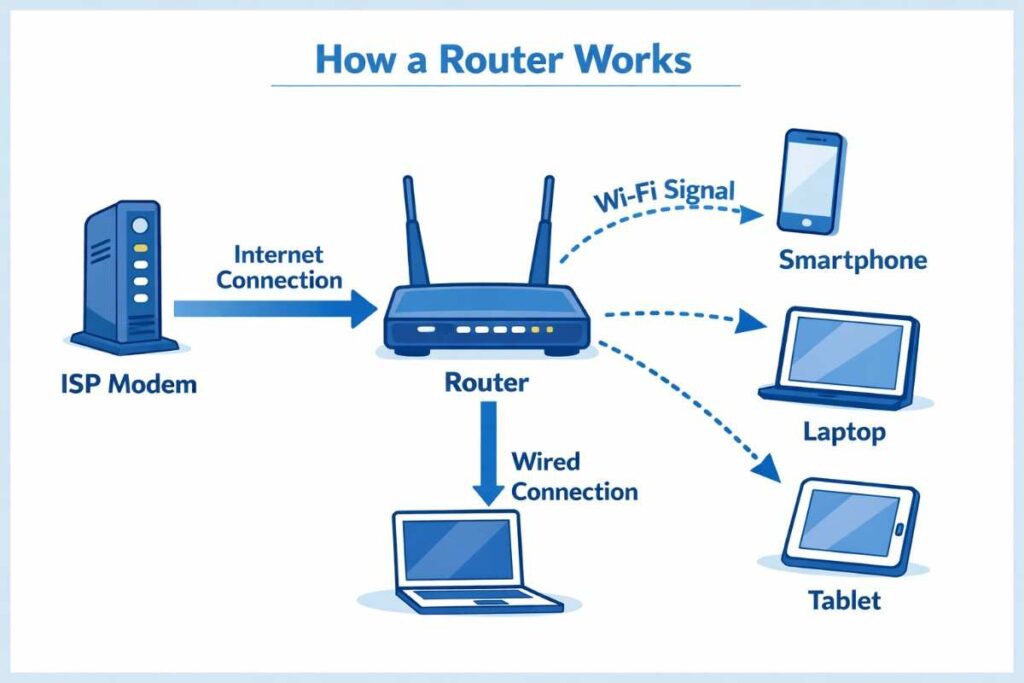
Understanding the journey of internet data helps clarify how routers work.
Step-by-Step Connection Process
- ISP Connection: Your modem receives internet signals from your ISP through a cable, fiber, or telephone line
- Router Reception: The modem passes this signal to your router via an Ethernet cable
- Signal Translation: The router converts the signal into a format devices can use
- Wireless Broadcasting: The router broadcasts Wi-Fi signals throughout your home
- Device Connection: Your devices connect to the router’s wireless network
- Data Transmission: Information travels between your device, the router, and the internet
The Role of Your Modem vs. Router
Many people confuse modems and routers—they serve different purposes:
| Modem | Router |
|---|---|
| Connects to your ISP | Connects to your modem |
| Translates ISP signals | Distributes internet wirelessly |
| Provides one connection | Serves multiple devices |
| Not optional | Optional (but highly useful) |
Key Components That Make a Router Work
Radio Frequency Technology
Your router uses radio waves to transmit data. Modern routers operate on two frequency bands:
- 2.4 GHz Band: Longer range, slower speeds, more prone to interference
- 5 GHz Band: Shorter range, faster speeds, less interference
Dual-band routers let you choose which frequency to use based on your needs.
Antennas and Signal Strength
Internal or external antennas broadcast Wi-Fi signals throughout your home. More antennas generally mean better coverage, though placement matters significantly. Routers placed centrally and elevated perform better than those hidden in corners or closets.
Processing Power and Memory
Your router’s processor determines how many devices it can handle simultaneously. Modern routers have improved processors that manage multiple connections smoothly, essential for homes with 10+ connected devices.
Types of Routers: Which One Is Right for You?
Single-Band Routers
These older routers operate only on the 2.4 GHz frequency. They’re cheaper but slower and more prone to interference from microwaves and cordless phones.
Dual-Band Routers
The most common type today, dual-band routers operate on both 2.4 GHz and 5 GHz. They offer flexibility and better performance for modern homes.
Tri-Band Routers
These advanced routers add an additional 5 GHz band. They’re ideal for homes with many connected devices or those requiring ultra-fast speeds for gaming and streaming.
Mesh Routers
Mesh systems use multiple units placed throughout your home to create seamless coverage. They eliminate dead zones better than traditional routers, though they cost more.
How Router Speeds and Specifications Matter
Understanding Wi-Fi Standards
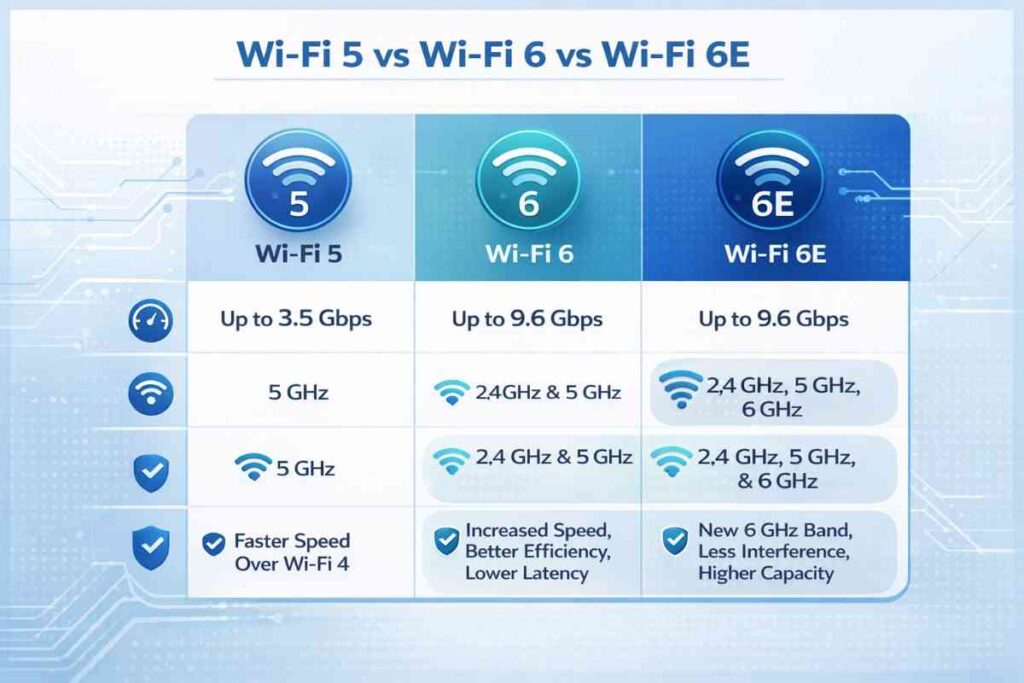
- Wi-Fi 5 (802.11ac): Maximum speeds up to 3.5 Gbps, suitable for most homes
- Wi-Fi 6 (802.11ax): Maximum speeds up to 9.6 Gbps, better efficiency with multiple devices
- Wi-Fi 6E: Includes 6 GHz band, fastest available, best for future-proofing
What Speed Do You Actually Need?
Most households need routers offering 100-300 Mbps for daily browsing, streaming, and social media. Gamers and content creators should consider routers with faster Wi-Fi 6 support.
Security Features Every Router Should Have
Your router is your first line of defense against cyber threats.
Essential Security Features
- Firewall Protection: Blocks unauthorized access to your network
- WPA3 Encryption: The latest security standard for wireless networks (look for WPA2 minimum)
- Password Protection: Strong default passwords and the ability to create custom ones
- Firmware Updates: Regular security patches from manufacturers
- Guest Networks: Separate network for visitors without accessing your main devices
Best Security Practices
- Change your default router password immediately
- Update router firmware regularly (many routers do this automatically)
- Use strong passwords combining letters, numbers, and symbols
- Disable WPS (Wi-Fi Protected Setup) as it has known vulnerabilities
- Enable your router’s built-in firewall
Pros and Cons of Modern Routers
Advantages
✓ Easy setup: Most modern routers require minimal configuration
✓ Wireless convenience: Multiple devices connect without cables
✓ Cost-effective: Affordable entry-level options available
✓ Improved security: Built-in protections for your network
✓ Smart home integration: Connect IoT devices seamlessly
Disadvantages
✗ Interference issues: Wi-Fi signals weakened by walls and obstacles
✗ Limited range: Dead zones in large homes without mesh systems
✗ Complex troubleshooting: Technical issues difficult for non-tech users
✗ Privacy concerns: Data collection by some router manufacturers
✗ Heat generation: Routers can overheat if poorly ventilated
Expert Tips for Optimizing Your Router Performance
Placement Strategy
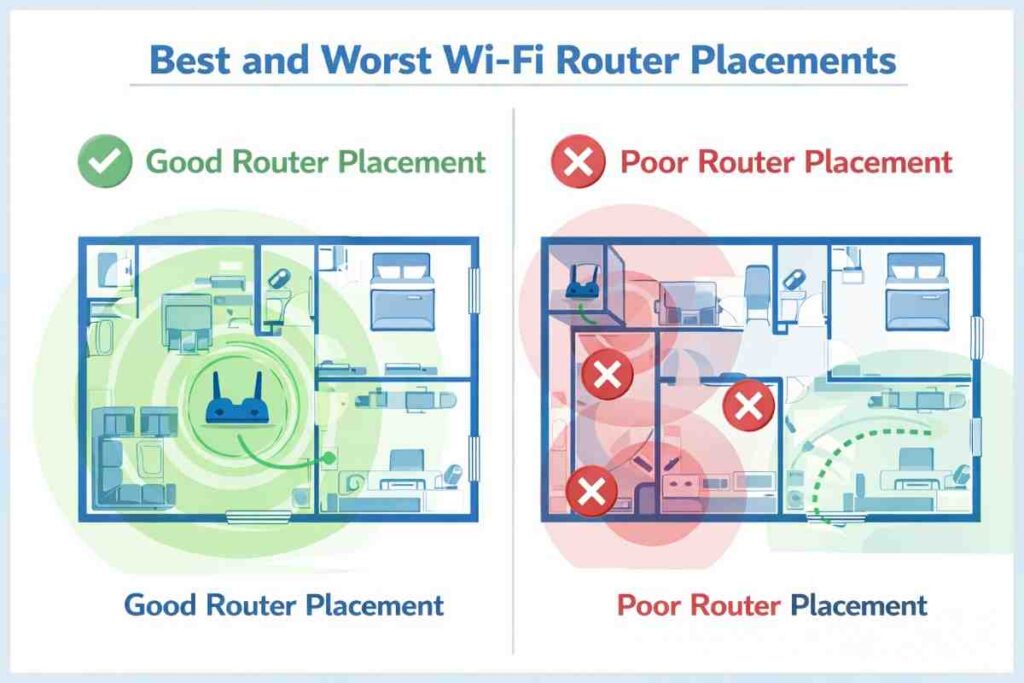
Position your router centrally, elevated off the ground, and away from walls and metal objects. Avoid placing it near microwaves, cordless phones, or baby monitors—these devices operate on the same frequencies and cause interference.
Channel Optimization
Wi-Fi channels can overlap, causing interference. Use Wi-Fi analyzer apps to find the least congested channel in your area. Most routers allow manual channel selection through their admin panel.
Bandwidth Management
If your network feels slow, check which devices are consuming the most bandwidth. Some routers allow you to limit bandwidth per device or prioritize certain applications.
Regular Restarts
Restart your router monthly to clear its memory cache and improve performance. Simply unplug it for 30 seconds, then plug it back in.
Distance and Obstacles
Keep devices within 50-100 feet of your router for optimal speeds. Concrete walls, metal fixtures, and water features weaken signals significantly.
Latest Trends in Router Technology (2024-2026)
Wi-Fi 6E Adoption
Wi-Fi 6E routers are becoming more affordable, offering access to the 6 GHz spectrum for less congestion and faster speeds.
AI-Powered Management
Modern routers now include artificial intelligence features that automatically optimize performance, detect threats, and manage network traffic without user intervention.
Mesh Systems Growing
Mesh router systems continue gaining popularity as they eliminate dead zones and provide consistent coverage throughout homes.
Enhanced Privacy Features
Manufacturers are adding advanced privacy protections and parental controls as users become increasingly concerned about data security.
Frequently Asked Questions
What’s the difference between a router and a modem?
A modem connects to your ISP and converts their signal into usable internet. A router takes that signal and distributes it wirelessly to your devices. Many modern units combine both functions in one device called a “gateway.”
How often should I replace my router?
Most routers last 3-5 years before performance degradation. However, if your devices support newer Wi-Fi standards (like Wi-Fi 6), upgrading can significantly improve speeds. Replace your router immediately if it’s over 10 years old.
Why is my Wi-Fi speed slower than my internet plan?
Several factors reduce Wi-Fi speeds: distance from the router, interference from other devices, connected device count, router age, and obstacles like walls. Ethernet connections typically deliver closer-to-plan speeds.
Can I use any router with my ISP?
Most ISPs allow third-party routers, though they may require modem activation. Check with your provider before purchasing. Some ISPs charge extra for using their supplied modem and router, making independent purchases more economical.
Is a more expensive router always better?
Price doesn’t guarantee performance. Mid-range routers ($75-$150) meet most household needs. Expensive routers benefit users with large homes, many devices, or demanding activities like gaming and 4K streaming.
Conclusion
A router is an essential device that bridges the gap between your internet service provider and your connected devices. By understanding what a router is and how it connects you to the internet, you can make better decisions about your home network. From selecting the right router type to optimizing its placement and security settings, these fundamentals ensure you get the best performance and protection.
Your router deserves attention—update its firmware regularly, position it strategically, and secure it with strong passwords. Whether you’re working from home, streaming entertainment, or managing smart home devices, a well-maintained router keeps everything running smoothly.
Ready to improve your internet experience? Start by checking your router’s placement and running a speed test to see your actual connection quality. If you’re struggling with slow speeds or dead zones, consider upgrading to a mesh router system for whole-home coverage.